
Lets get you started and set up your Vault to protect your families digital inheritance...
Contents
Platform overview and navigation
Setting up your secure account
Sign up to a Vault subscription
Understanding Key holder roles and permissions
Welcome to FinalVault: Your First Steps
Platform overview and navigation
FinalVault is split into very basic sections to maintain simplistic navigation and usage. The top menus outline:
- The Hub - this is where you can find the latest information and blog articles relating to Digital Inheritance in the UK, there a lots of useful articles and information that you may fine useful.
- The Academy - you are here already, this is how you learn about using the platform and ensure your Vault is secured with the right information.
- Vault - this is either your Vault, or where you can access Vaults you have been designated as a key holder.
- Settings - configure your personalised user configuration and managed all components linked to your account.
- Help - our support pages and where we can help you. It could be an FAQ or you may wish to log a ticket to get some human support. Either way, we have a dedicated UK support team waiting to assist you.
Setting up your secure account
Accounts are simple and free to set up. Head over to the Sign up page -Sign up
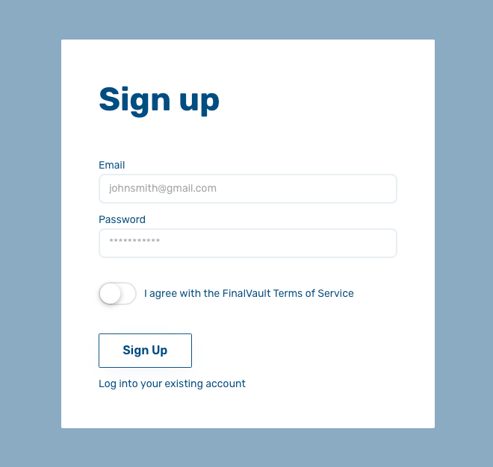
Enter your email address and desired password, this password needs to meet our complexity requirements so we need to make sure that it is a certain length and contain special characters (this makes it harder to guess or crack). Also, please take time to read our Terms of Service that outline how the FinalVault service should be used. It can also be found here -Terms of Service. Once you are happy with the Terms, select the toggle button and click on the Sign Up button.
You will then be greeted with a secondary page that requires a code that has been emailed to the email address you submitted before.
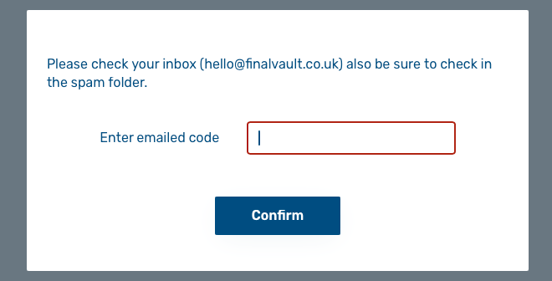
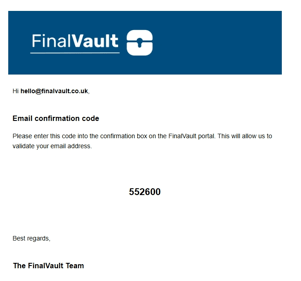
Once you enter the code, you will need to log in again where we can start configuring your account.
You will be presented with a pop up screen where you can configure some personal details - you will also configure your memorable word (this is used in place or as well as your password where you are peforming certain tasks in the Portal).

You can always change this from the Settings page in the Portal.
Understanding your dashboard
The Settings dashboard is split into several sections. You can see a log of all Sign In activity from the top of the Your Details section (If there are any suspicious or unknown entries, please contact support immediately). The remainder of the Your Details section allow you to set up your personal information, such a profile picture, name, and date of birth. You will also need to complete ID verification (this will launch a pop up to our verification process).

Verification process
This is an important part of our security - all accounts need to be verified before they can be assigned as a Key holder or subscribe to a Vault. This allows us to be certain that the account belongs to the registered user. You will be redirected to our verification partner, where you can upload picture of our ID and use your webcam, or use your mobile phone to take a picture of the QR code, and take photos of your ID and take a selfie to verify your likeness.
Once your ID has been verified, you can continue to use the complete platform with no restrictions.

If there are any issues with this process, please contact our support team and they will be able to assist you.
Sign up to a Vault subscription
You can now sign up to a Vault - you can even take advantage to the free 14 day trial.
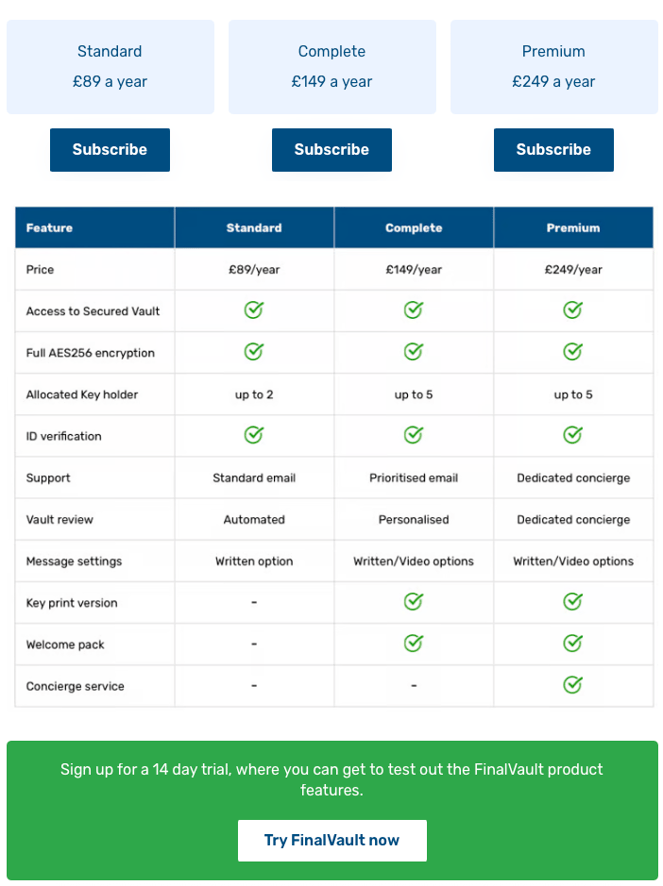
Select the Vault subscription that fits with your requirements.
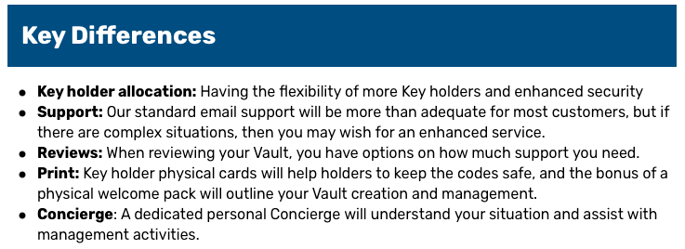
Your payment for the Vault subscription is managed by our payment partner Stripe. We hold no card information. You will be able to manage your subscription from the portal.
Setting Up Your Digital Estate Plan
Creating your Vault
Once you have a valid subscription other trial, you can now navigate to the Vault page. There is now a new option to create a Vault.
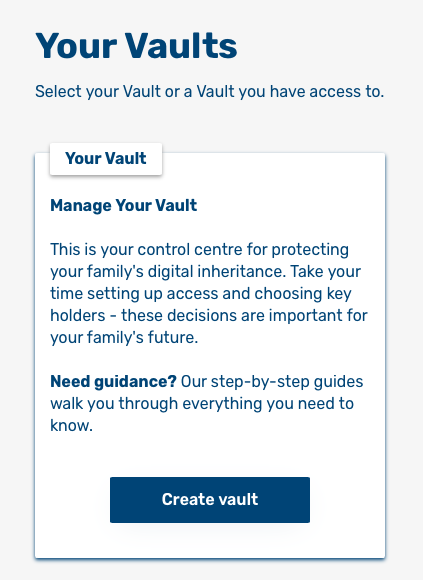
Your new Vault will be provisioned in the country region of your choice - this is configured through a settings option. It is UK my default as this ensures that data in your Vault remains within UK legal jurisdictions.
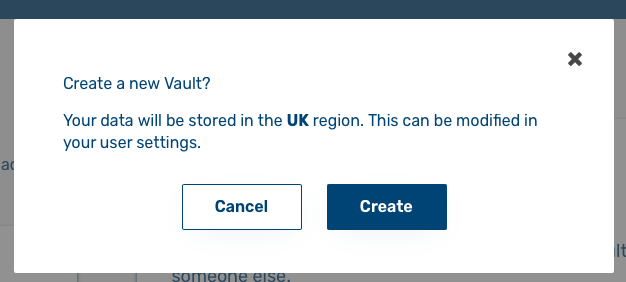
Create the Vault when you are ok to proceed.
Once the Vault is created, you will be redirect to the Vault to start populating information.

Understanding Key holder roles and permissions
Your vault has two states, locked and unlocked, much like a physical vault. When you Lock the Vault there is no access to it, you or your Key holders have to unlock it. When you want to add content and make changes, you will need to unlock and then lock your Vault. To generate keys, head back to the Vault page and select your Vault. In the bottom section on the right had side, you can manage your Keys.
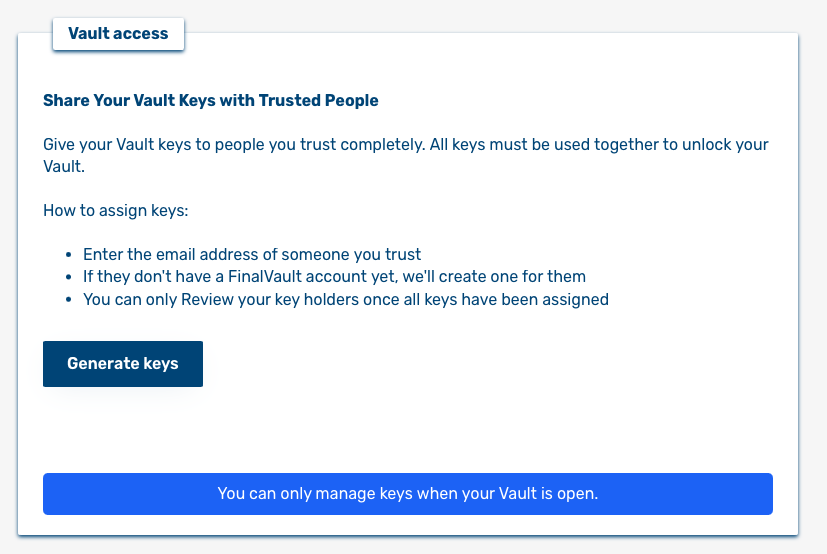
Click Generate Keys and select the amount of Key holders you require. Remember that on a Standard subscription you are limited to no more than two Keys. Once your Keys have been generated, you can assign them to a Key holder.
Enter their email address into the text box, they will be emailed that have been assigned a Key from your Vault.
Locking the Vault
You can only edit the contents of your Vault and Vault services, such as Key holders assignments, when the vault is unlocked. To Lock your Vault navigate to the Vault options page
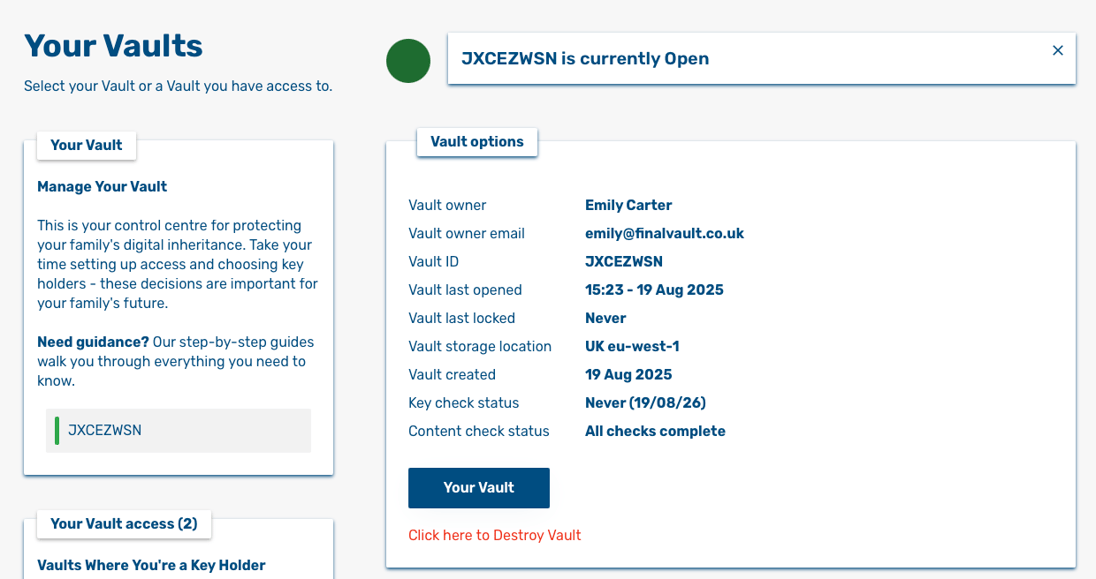
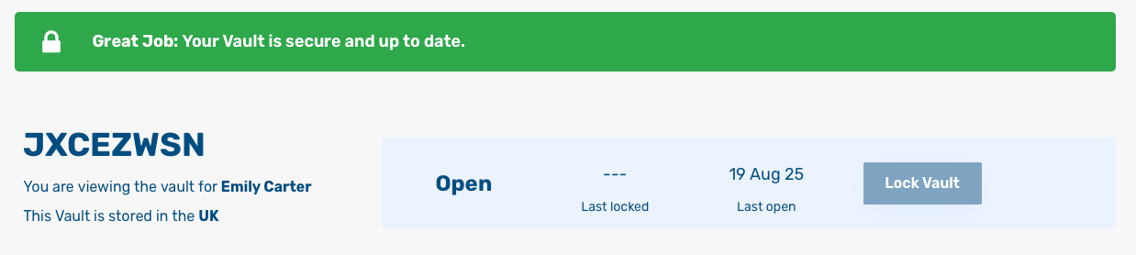
The in the top section click the Lock Vault button
You will only be allowed to Lock your Vault if the following requirements are met.
- You have a valid Vault subscription.
- Your identity has been verified.
- You have checked your Vault content is up to date and valid.
- You have allocated Keys to Key holders.
- Your assigned Key holders identity has also been verified.
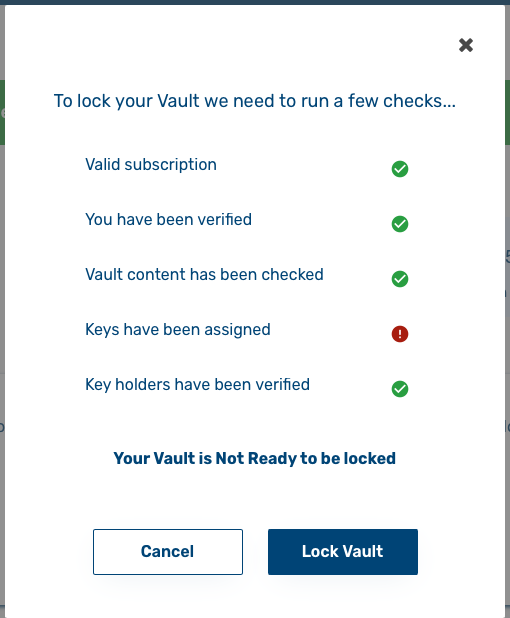
If any component is missing, you will not be able to lock your Vault.
Configuring Key holders
To assign Keys, first navigate to the Vault options page select you vault from the right hand side, then go to the Vault access section
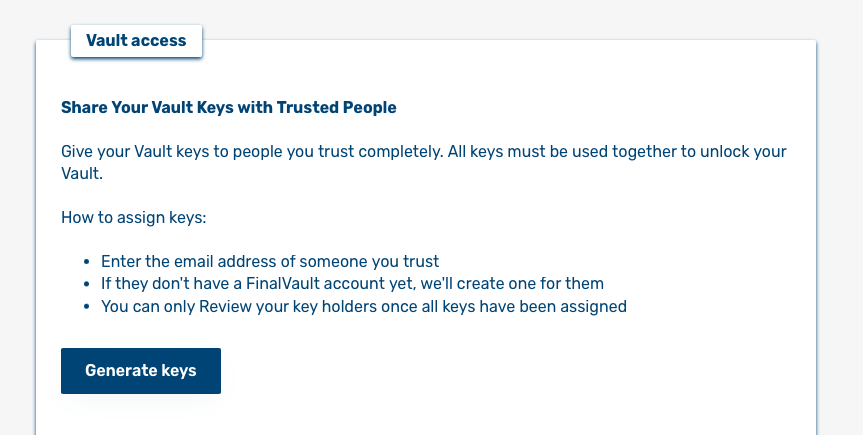
Press the Generate keys button. From the popup, you will be able to configure access to your Vault by creating Keys to allocated to trusted Key holders. Under the Standard plan you can allocate up to two keys, if you require more then upgrade to the Complete or Premium plans. Select the desired amount of keys, and click Create.
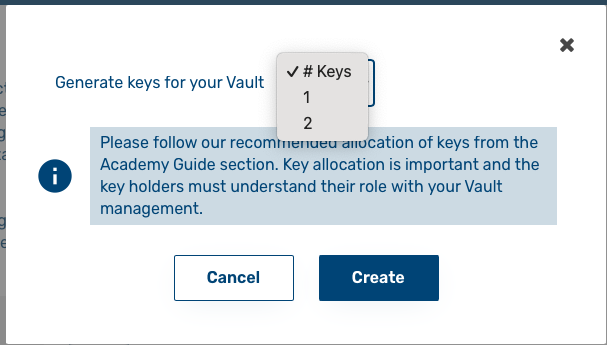
Once the Keys have been generated, you can assign them to an email address of your trusted Key holder. You can only do this when the Key access is unlocked. Ensure you click the Unlock keys button first (unlock is timed and will automatically lock after two minutes).
Enter the email address of the Key holder and click on the green add button, they will be emailed instructions to set up their account and information regarding being a trusted Key holder of your Vault.

Once the Key is allocated you have options to remove the Key holder - the red remove icon, send the Key securely via email - the paper aeroplane icon, and one the Key holder has be verified -the Shield Icon will turn Green.

You can also destroy all the Keys and generate new ones from the Destroy keys button.